


Learn to Use miniDSP Device Console & REW
to Create a Successful Room Correction Project
Contents
- Introduction
- Software Update and System Reset
- System and Measurement Tools Layout
- Verify and Adjust Basic System Functionality
- Cabling Verification Steps
- Speaker Driver Operation
- Speaker Polarity
- Relative Speaker Level Settings
- Crossover Function
- Subwoofer Room Positions
- Before You Proceed to a Dirac Live or REW Project
- Performing a Dirac Live Project
- Listening With and Without Dirac Live Enabled
1. Introduction
Completing a system verification will allow you to be sure your audio system is performing at its highest potential. With miniDSP preamplifiers, you can perform verification in the digital domain with excellent fidelity.
To successfully apply Dirac Live room correction or Room EQ wizard (REW) filters to your listening space, you first need to be sure all the elements of your system are set up and operating correctly. In this blog we will outline the process of performing and interpreting key measurements to verify all basic system functions prior to any miniDSP based system setup or room calibration project. This example is for a main speaker and subwoofer setup, but it also could be for an active two-way system.
2. Software Update and System Reset
These first steps will ensure that your miniDSP is fully updated and in its factory default configuration.
- Save existing .xml (Device Console) and .liveproject (Dirac) configurations
- Turn off Dirac Live
- Delete all old firmware and software downloads as necessary
- Download and update all software and firmware
- Reset miniDSP to factory default (Reset-All)
3. System and Measurement Tools Layout
Before beginning the verification process, you will need to configure REW connecting your UMIK-1 microphone and miniDSP 2x4 HD, Flex or SHD to your computer. Be sure that you have suitable USB cable revisions and lengths. It is recommended that you use a USB cable with the most recent hardware revision and avoid lengths greater than 15 ft. You’ll need to position your laptop computer in the listening area and have the ability to move the microphone around the seating area.
- Validate there are no dropouts using UMIK-1 measurements. Be wary of USB adapters and extenders, as these can cause dropout errors.
- Be sure you can freely move the microphone stand around without having to reposition your laptop or stress any cables
- Verify you have proper gain structure https://www.minidsp.com/applications/dsp-basics/gain-structure-101
- Set all subwoofers settings to nominal as these are performed in the miniDSP
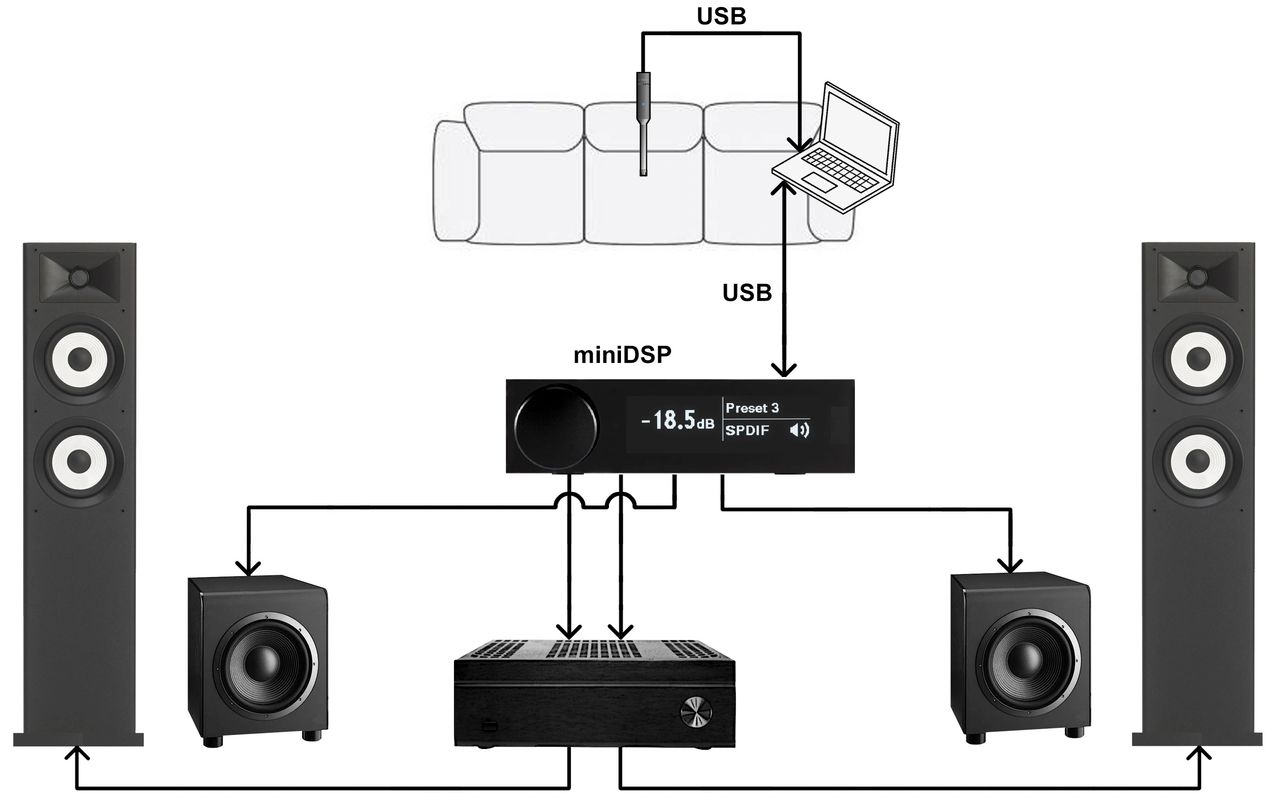
Check that all your system settings are in the proper configuration or nominal position. To perform basic measurements, use REW software. Depending on your specific system components, examples may include:
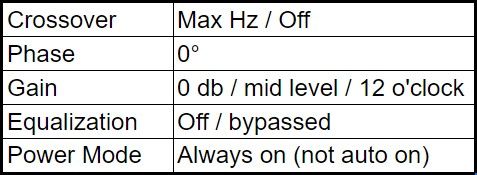
- Amplifier mono versus stereo switch and gain settings
- Speaker tone control knobs
- Bi-wiring connections
- Subwoofer(s) level, phase, inversion and tone settings
- Preamplifier and power amplifier level trim knobs
- Turn off Dirac Live
4. Verify and Adjust Basic System Functionality
Before beginning a system tuning project, all of your system components need to be in proper working condition. To confirm cabling, use REW as a noise generator.
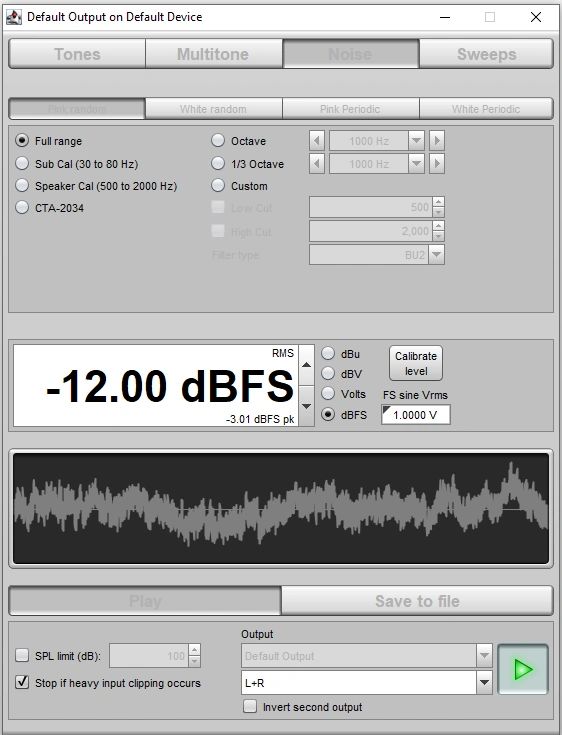
You’ll need to listen to each speaker and subwoofer individually, listening for similarity to confirm the connections shown in Diagram 4. This will be measured in greater detail later using frequency sweeps.
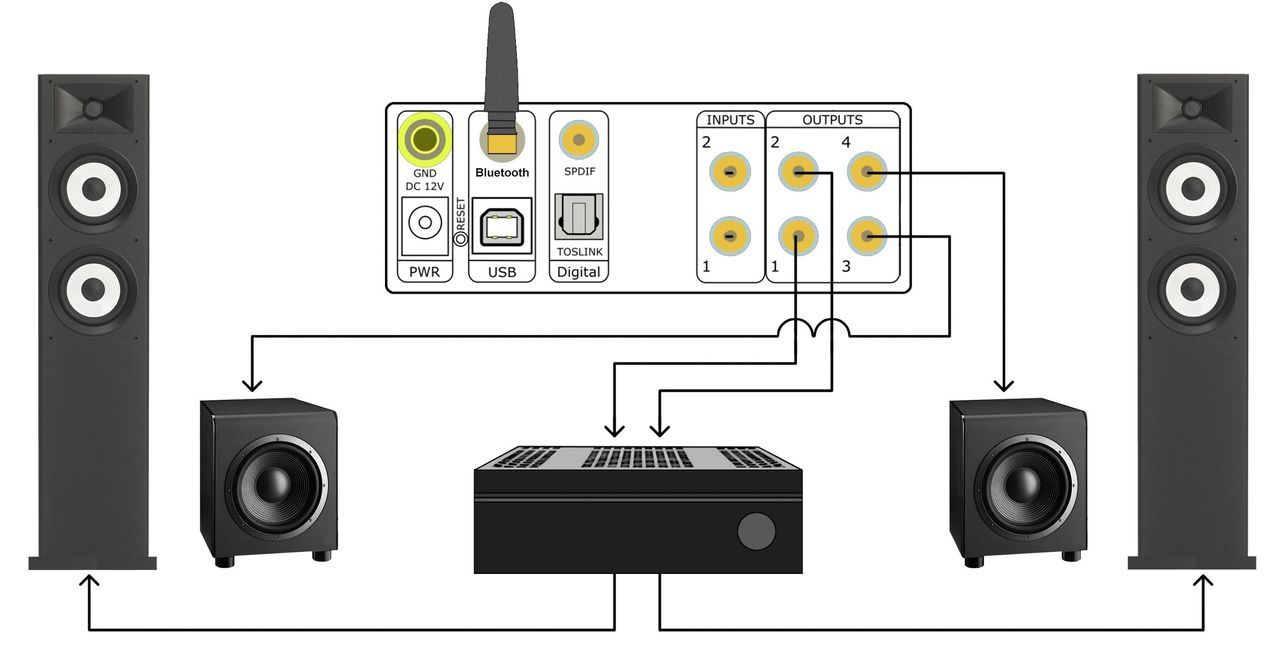
4a. Cabling Verification Steps
- All cables are connected correctly and securely
- Left and right main speakers sound the same and match the subwoofer(s) levels
- Check individual driver response to confirm no drivers are damaged or misconnected
- Verify; left is left and right is right for all speakers
- Verify; no speaker cable connections are inverted
- Check relative levels of all speakers and subwoofers
- Measure frequency resonance of individual speakers/woofers
- Verify consistency with noise test on speakers and subwoofers
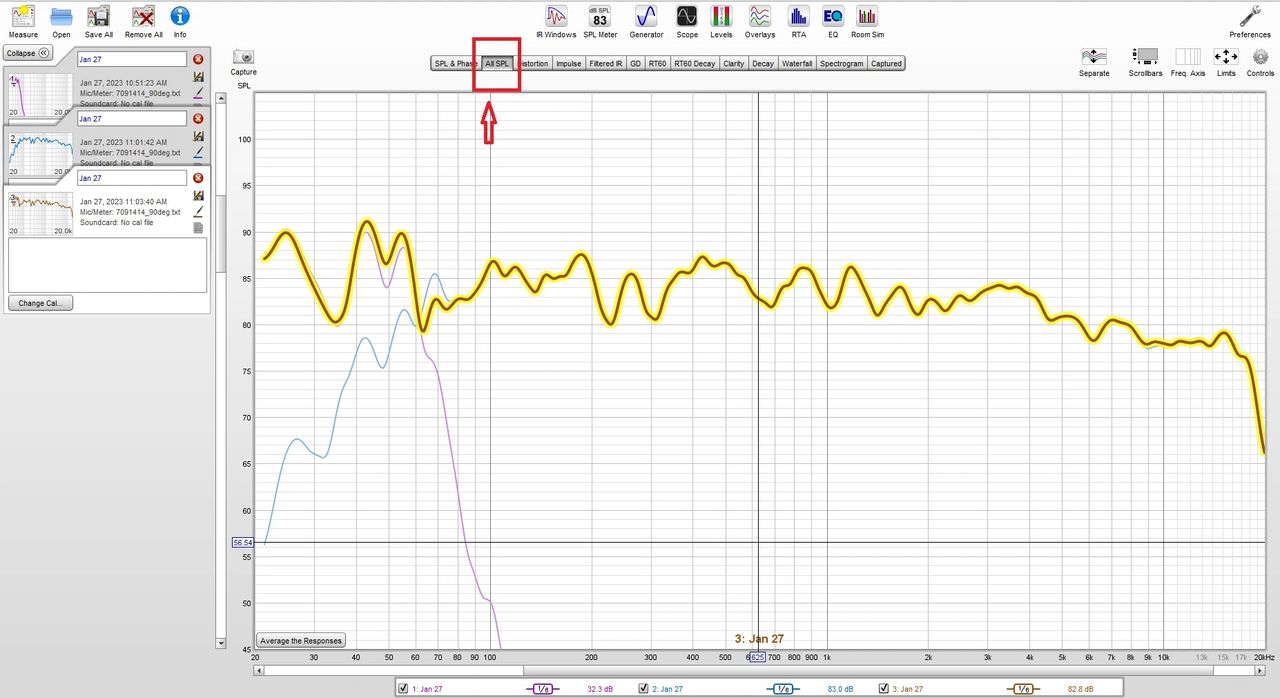
On the main page of miniDSP Device Console, you can individually measure each speaker by using the mute buttons. You can display them simultaneously by selecting the ALL SPL tab in REW. This is where you confirm the proper operation of your system elements.
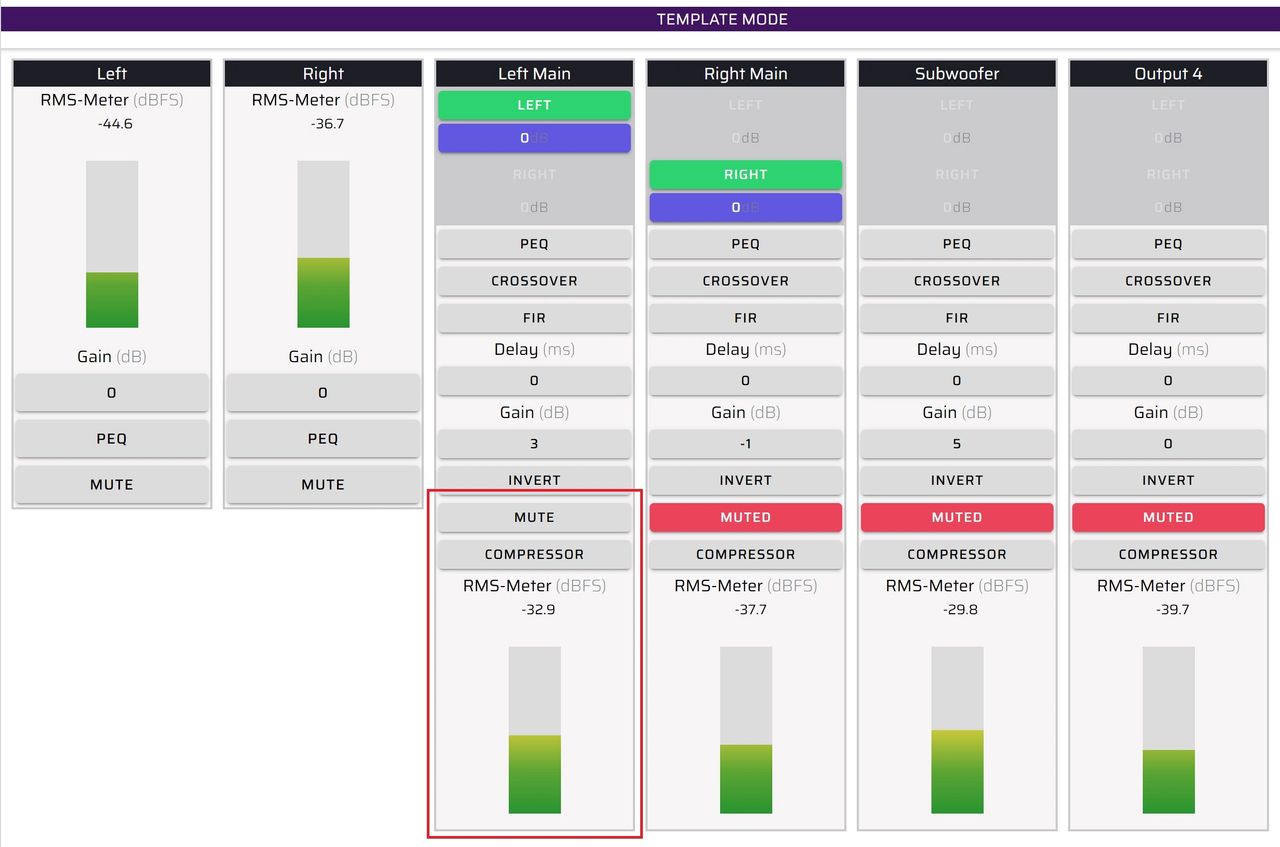
4b. Speaker Driver Operation
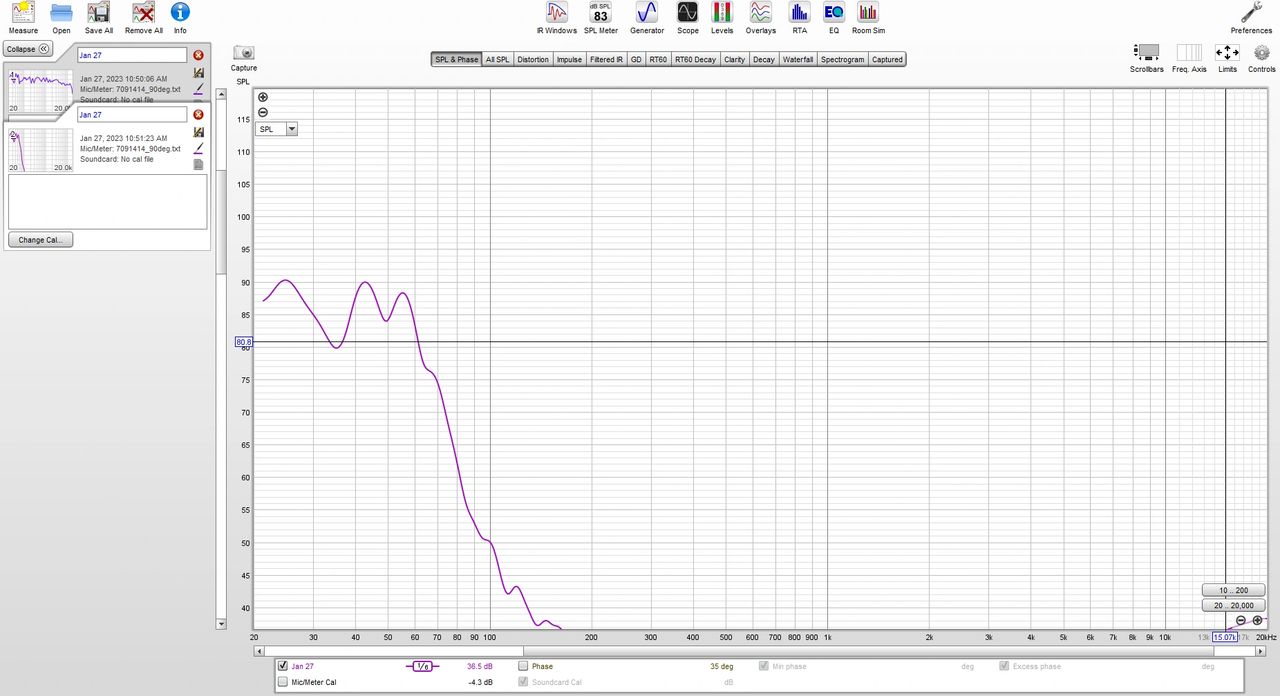
It's important to make sure that each of the individual drivers: tweeters, mid-ranges and woofers are functioning properly. This is accomplished by using REW to measure the frequency response of each of the speakers separately and combined to validate performance.
In this step we want to make sure there are no burned out drivers, buzzes or rattles. You also can listen for and correct any excessive room vibrations. Room vibrations can include rattling pictures, light fixtures, cabinet doors, etc.
4c. Speaker Polarity
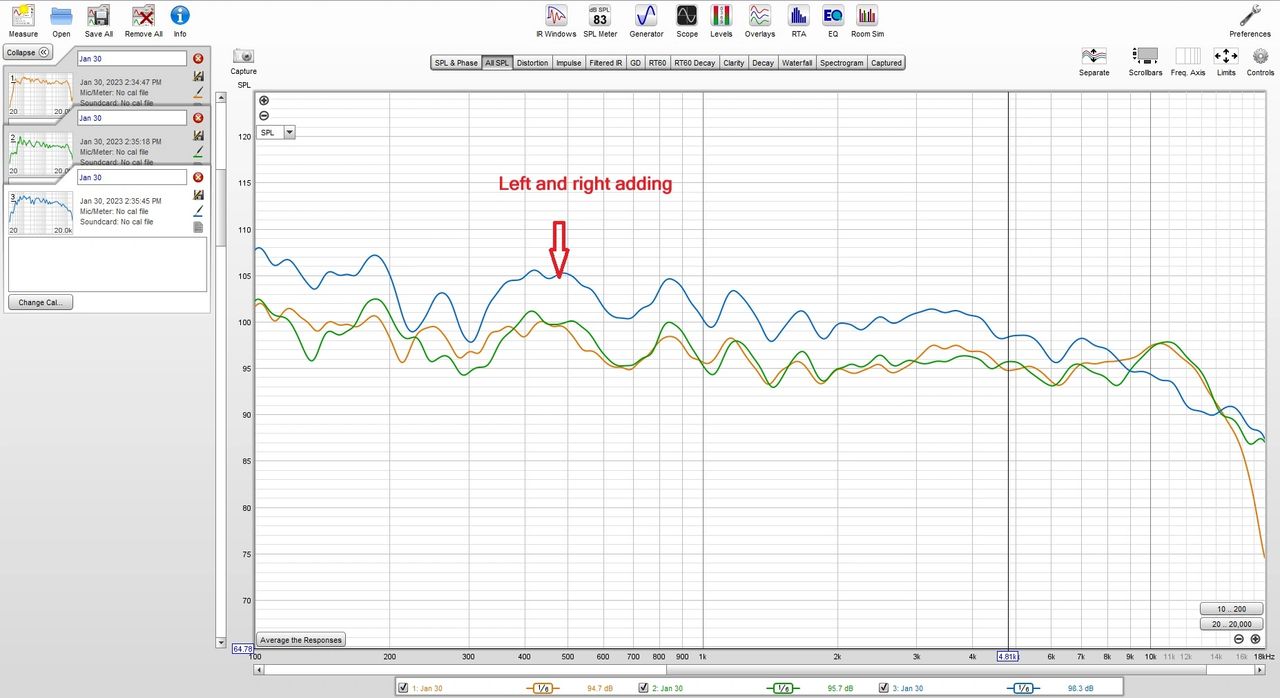
After confirming the integrity of all connections and speaker driver operation, the next step is to independently measure each of your channels, main speakers and subwoofer(s). First, view them on the All SPL screen of REW. Then measure the left and right channels simultaneously to be sure they are additive .You can see in this example they add by 6 dB, meaning they are in phase.
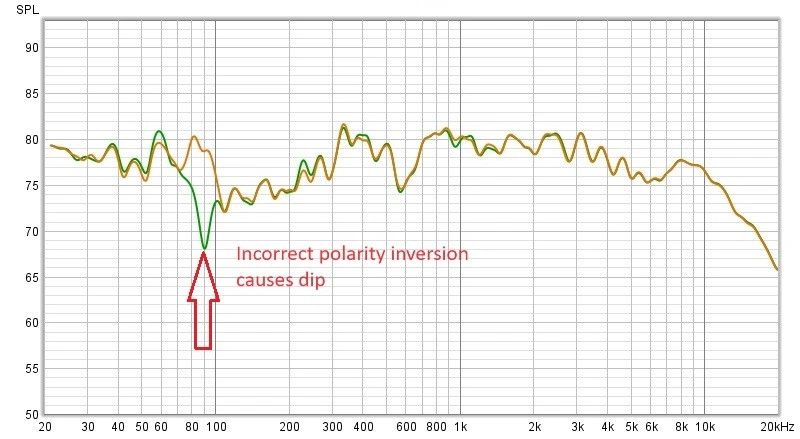
Next, we can verify the subwoofers are non-inverted from the main speakers. If you have an inverted phase situation, the level will subtract in the crossover region of the drivers. The goal is to end up with all of the speakers being additive in power level.
4d. Relative Speaker Level Settings
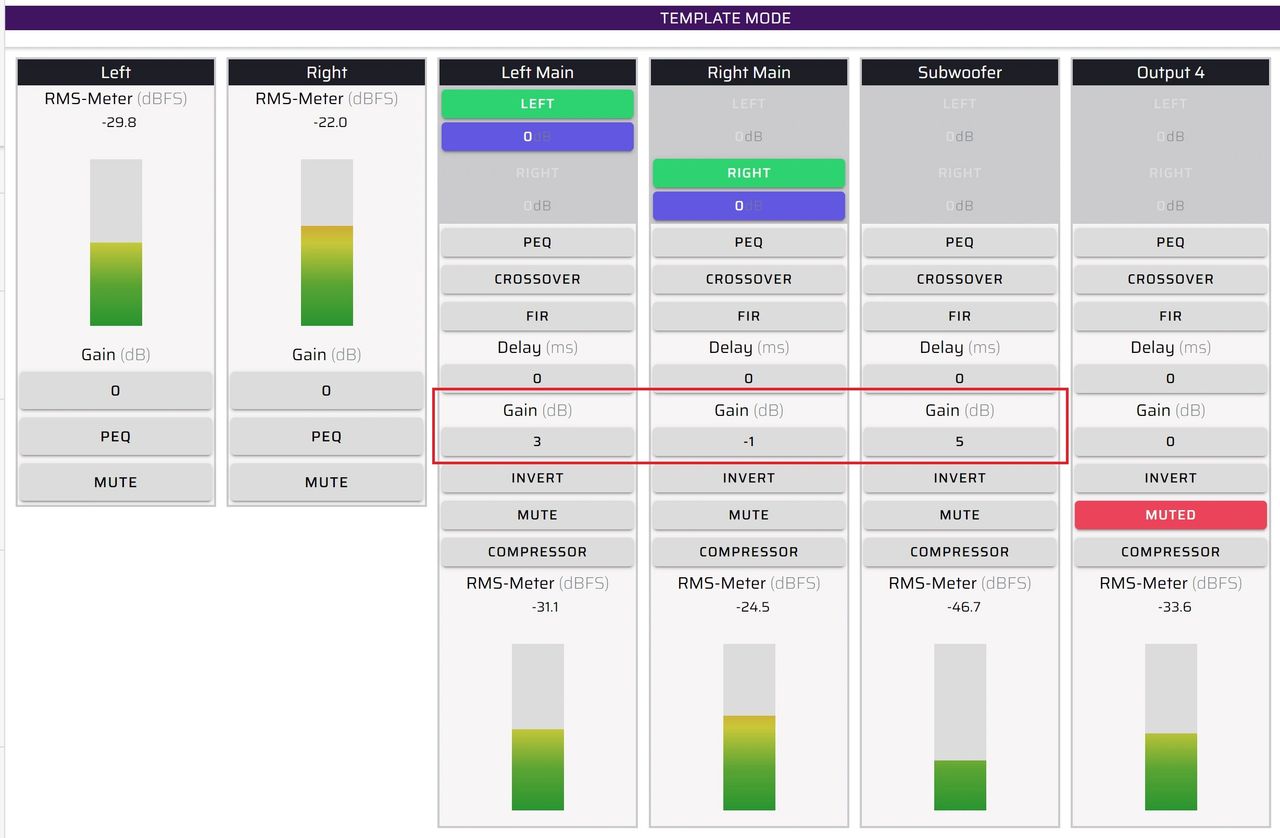
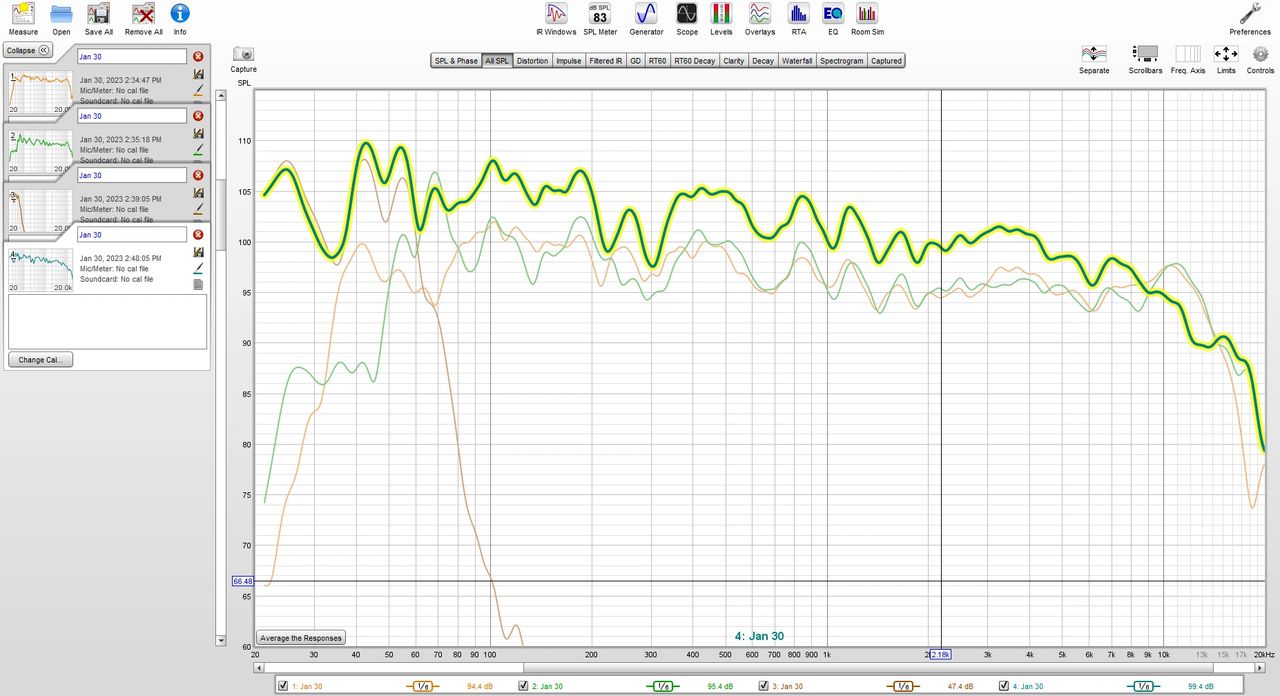
The next step is to set all the levels to be approximately equivalent using the All SPL screen in REW. What should be notable here is that all of the relative speaker levels are close and sloping downward, exhibiting a Harman tilt. By this point you should have made significant improvements, resulting in a nice sounding system.
4e. Crossover Function
One of miniDSP’s most powerful tools is the ability to create a very precise and neutral sounding main speaker plus subwoofer(s) system. This also applies to active two-way systems. Combining measurements along with critical listening will allow you to determine the best sounding setup. The goal is to have a neutral sounding system with seamless tight bass.
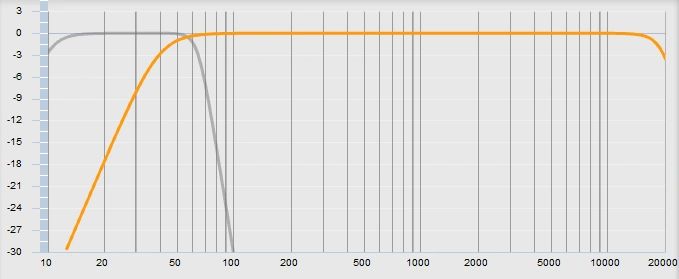
You can learn more about this topic in our tech blog and companion video on Subwoofer Integration: Take Your Stereo to the Next Level.
4f. Subwoofer Room Positions
At any time in the process you can reconfirm that there are no significant issues with room placement of your speakers, especially the subwoofer(s).
For example, if you don’t see the expected performance out of a subwoofer you may wish to move it to a corner or some other location. Then you can use REW to verify that you have improved your system’s frequency performance.
5. Before You Proceed to a Dirac Live or REW Project
Now that you've completed the above validation steps, your system should be performing to a high standard. It's a good idea to do some critical listening and fine-tuning such as relative levels and crossover points. As you make changes in Device Console, it's always good to validate what you think you're hearing with an REW frequency response sweep. Once you're comfortable with your settings it's time to move on to performing either a Dirac Live project or an REW equalization project.
5a. Performing a Dirac Live Project
Now that the basic setup is complete and you are satisfied with the listening results, it's time to perform a Dirac Live project on the system as a whole. The Dirac Live process involves making a series of measurements in a three-dimensional space defining the designated listening area.
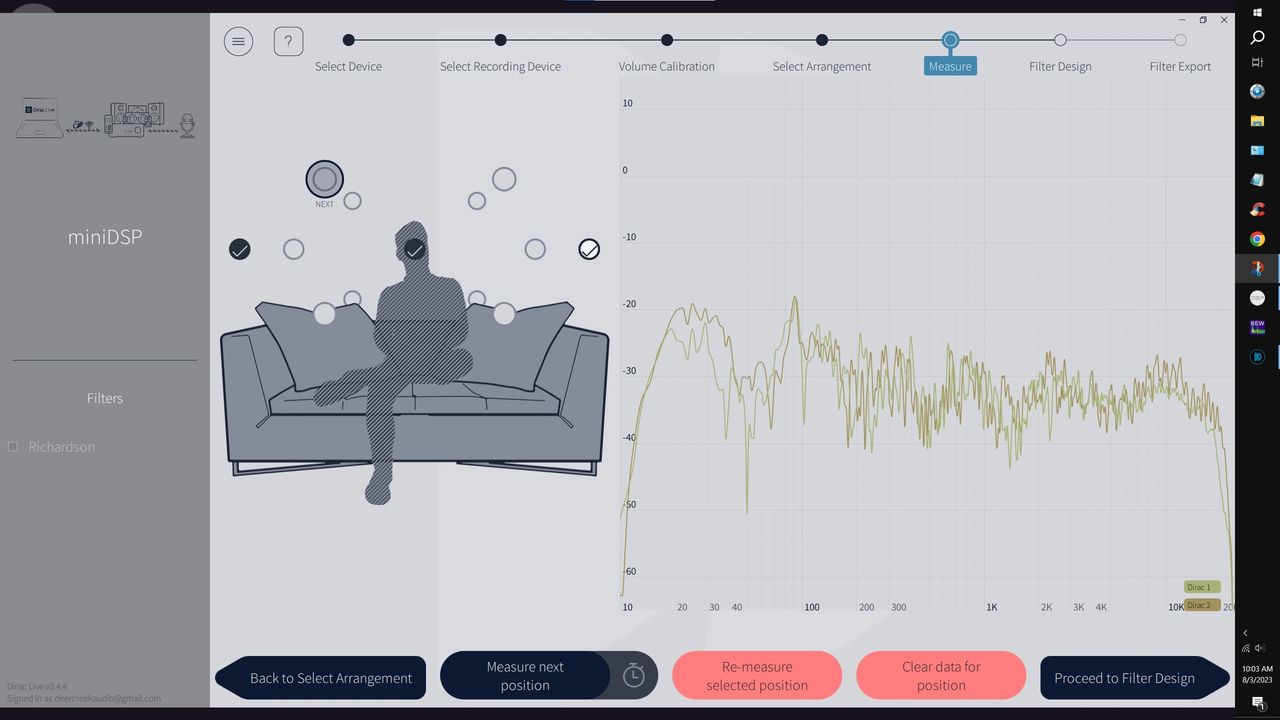
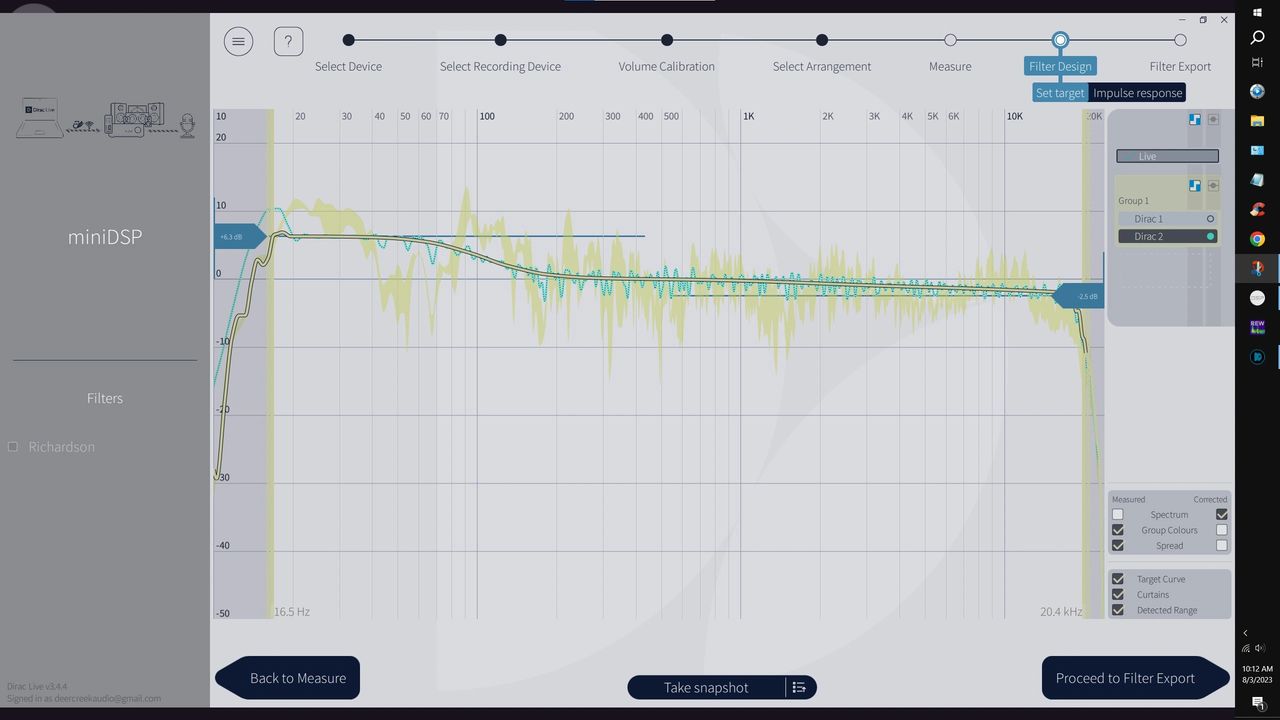
After you have performed the prescribed number of measurements in their proper locations, you are taken to the filter design page. This is where Dirac Live recommends a target curve for your listening space, which is a variation on the classic Harman curve. This target curve is user adjustable. In the diagram below you can see the target curve, initial measured response and the predicted response.
5b. Listening With and Without Dirac Live Enabled
From the SHD remote control, you have the ability to turn Dirac Live on and off for real-time comparison. For many listeners the result is an eye opening experience that allows them to enjoy the depth, layering and imaging of sound typically found in a live performance in their listening space.
If you have questions or would like to discuss in more depth, feel free to give us a call or drop a line.
Check out the companion video and more on our YouTube Channel
https://www.youtube.com/@deer_creek_audio
If you have questions or would like to discuss in more depth, feel free to give us a call or drop a line.
Share: