


the Subwoofer Sound You Always Knew was Possible
Properly integrating a subwoofer(s) into your stereo system is one of the most powerful ways to increase clarity, imaging, dynamics and all the attributes audiophiles associate with a high fidelity, full-range system. Using a miniDSP 2x4 HD, Flex or SHD you can integrate and tune a subwoofer into your 2.1 or 2.2 system and enjoy an enhanced listening experience.
The goals of subwoofer integration are
- Minimization of room modes, peaks and nulls
- Seamless integration of the last audio spectrum octave
- Elimination of excessive driver excursion and heat dissipation in full-range speakers
- Maximizing clarity and impact
Room EQ Wizard (REW) is used as a tool during the miniDSP Device Console setup. Once the initial setup and verifications are completed, you are ready to perform either a REW correction filter or a Dirac Live project.
System Architecture
Choosing Your Subwoofer Integration Strategy
If you are building a 2.1 system, your subwoofer will need to be driven monaurally by the miniDSP. If you are building a 2.2 system, you have the choice of a pair of monauralized subwoofers or stereo subwoofers associated with the full-range speakers.
A 2.2 monaural setup can be beneficial in cases where aesthetics dictate the location of the subwoofers, or when the full-range speakers have large subwoofers. A 2.2 stereo subwoofer system would be used when the subwoofers are located in close proximity to the full-range speakers. See the miniDSP Device Console Setup section below for routing matrix diagrams.
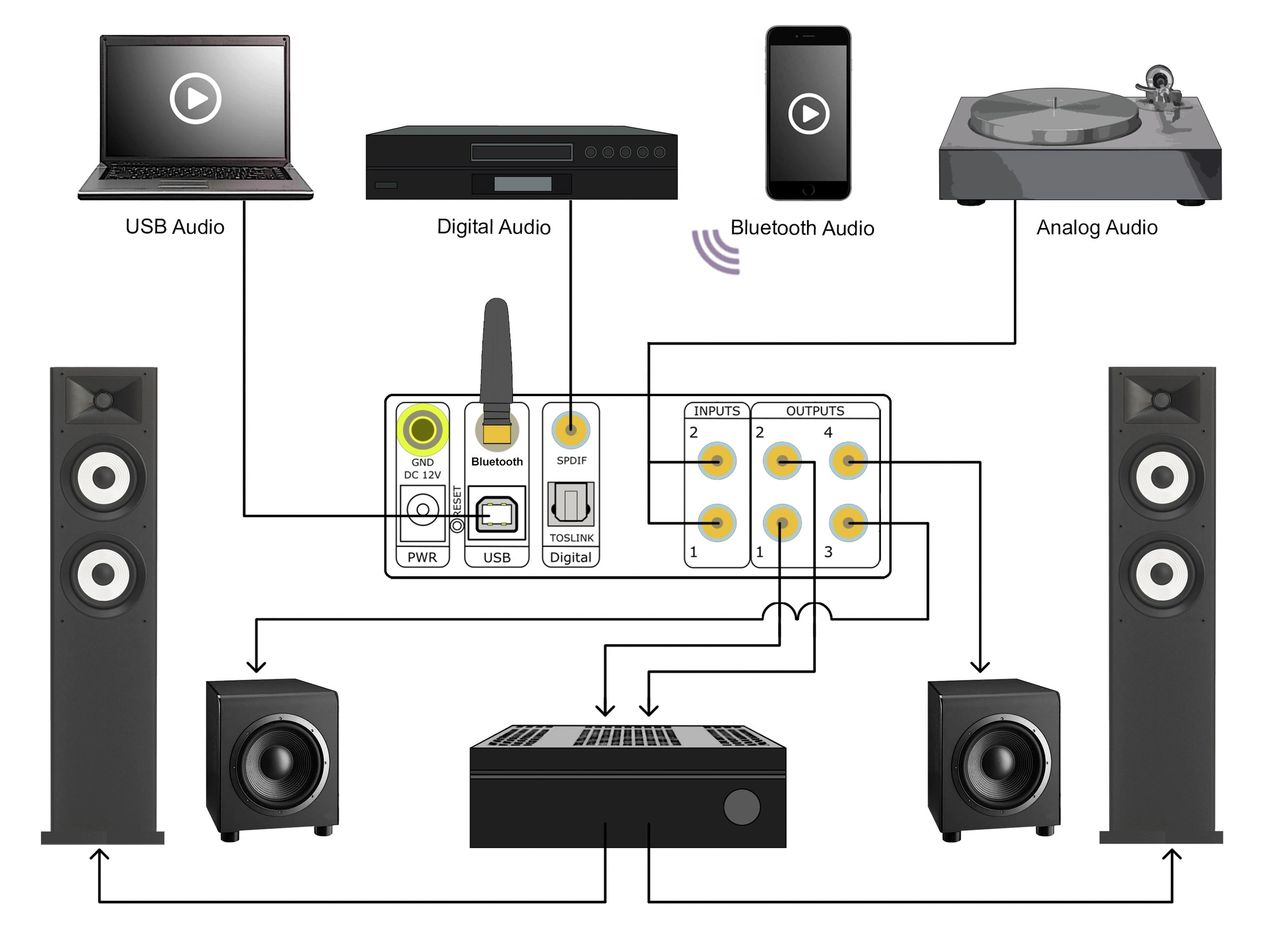
Test and Calibration Configuration
Following are typical hardware configurations tailored specifically to the miniDSP 2x4 HD, Flex or SHD.
Quality cables in good condition and of proper length are essential for this project. Check out our Cable Selection Guide. Select the proper USB cables to allow for convenient access to the user interface PC and for the microphone to move freely around the listening measurement area. Be sure that all of the subwoofer cables are shielded, low loss, of adequate length and securely connected.
The image below depicts a typical 2.2 setup. A 2.1 system with a single subwoofer will use output 3 only.
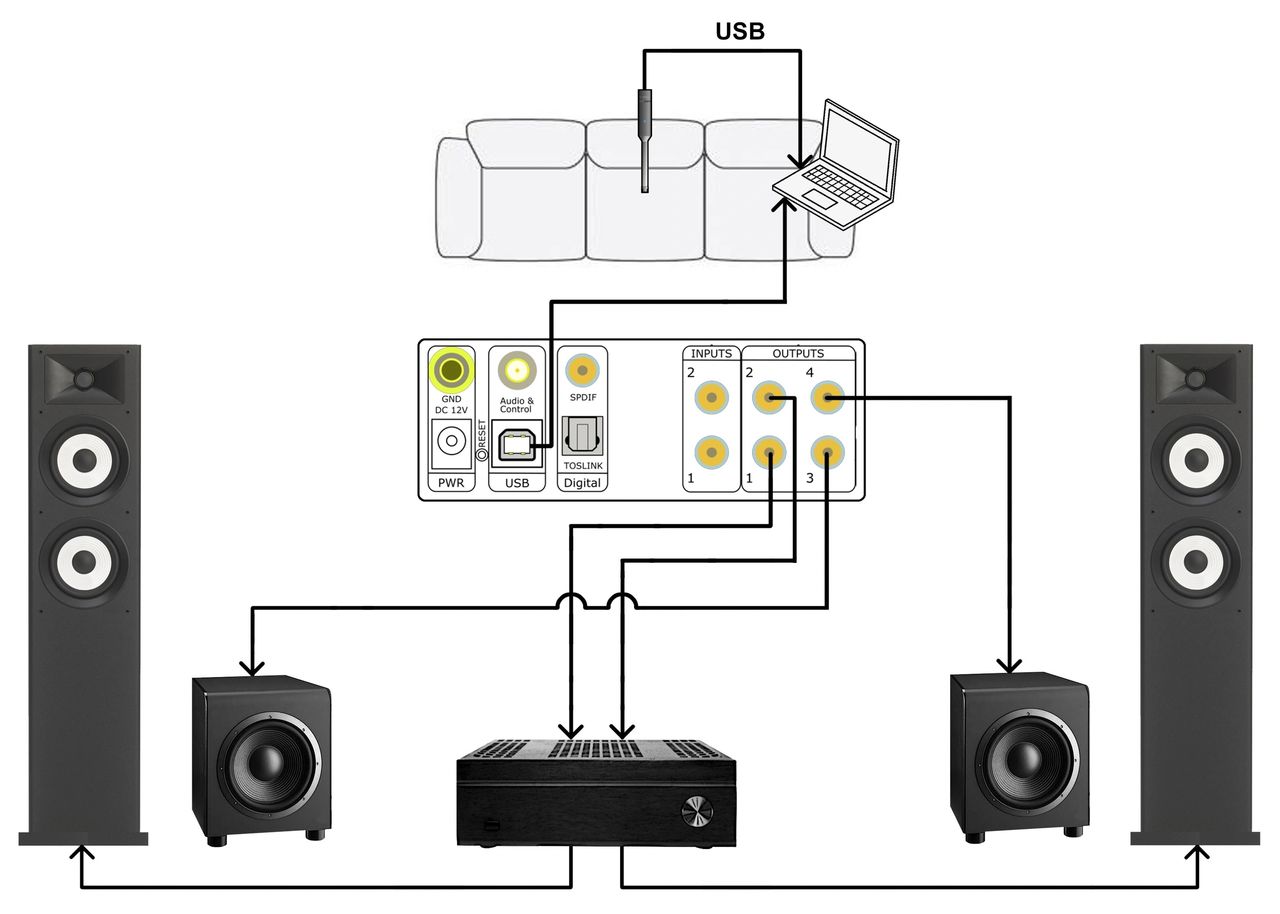
At this time you can check that the built-in level, equalization, inversion and crossover frequencies of your subwoofer is either bypassed or set to nominal. REW signals generated in your computer will be sent digitally to the miniDSP via USB.
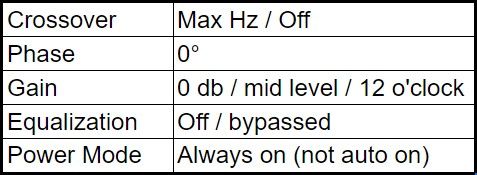
Your subwoofer should be set as below, so as to not interfere with the crossover, gain and delay parameters that will be set up in the miniDSP Device Console.
Subwoofer Placement
Generally, subwoofers can be placed against the rear wall besides the main with the full-range speakers pulled out for imaging purposes. Before proceeding with tuning, it's a good idea to experiment with various subwoofer positions and orientations depending on aesthetic and room limitations. Use REW to see the effects of the changes in position. Regardless of where the subwoofers end up, their location can be compensated for in either a 2.1 or 2.2 system by adjusting the relative delay between the various speakers.
miniDSP Device Console Setup
Using the miniDSP Device Console, you will configure the routing, crossover, relative level and delay settings appropriately for your system.
Routing Matrix Settings
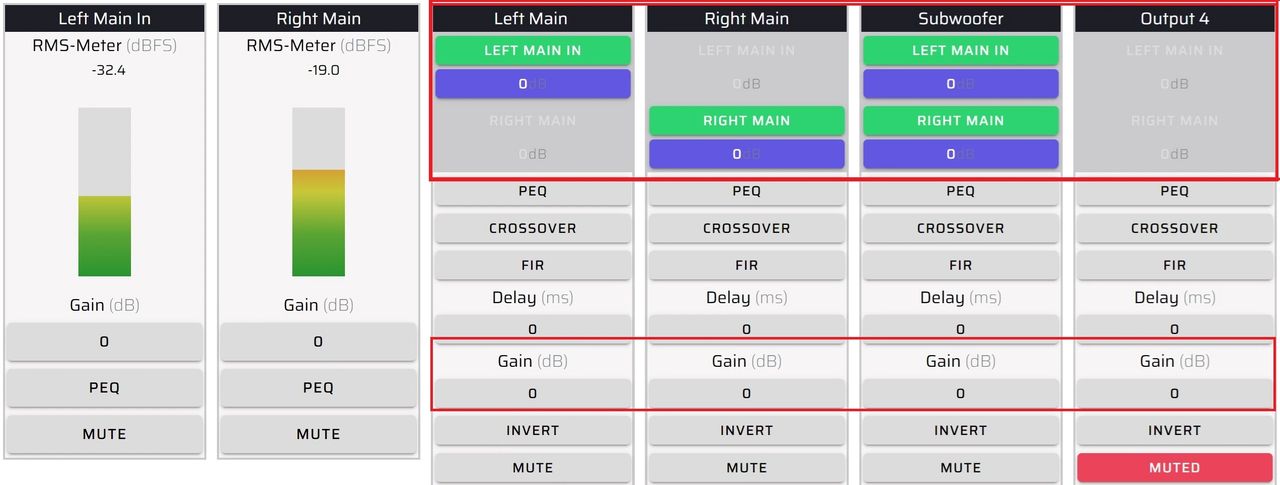
For a 2.1 system, your subwoofer will need to be driven monaurally using output channel 3. Typically channel 1 is used for left and channel 2 is used for right full-range speakers. You also have the opportunity in the routing matrix to adjust relative channel levels, as shown in the highlighted boxes.
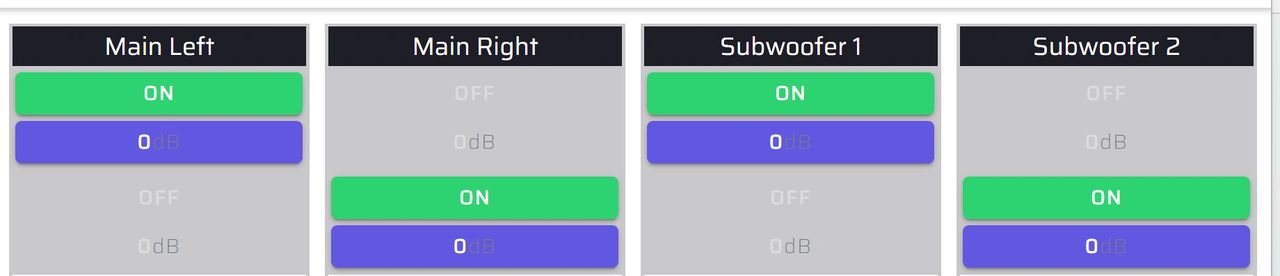
A 2.2 dual monaural setup can be beneficial in cases where aesthetics dictate non-symmetrical locations, or when the full-range speakers have large woofers. An added benefit of monaural subwoofers is the ability to cancel out room modes that otherwise might be present in the stereo setup.
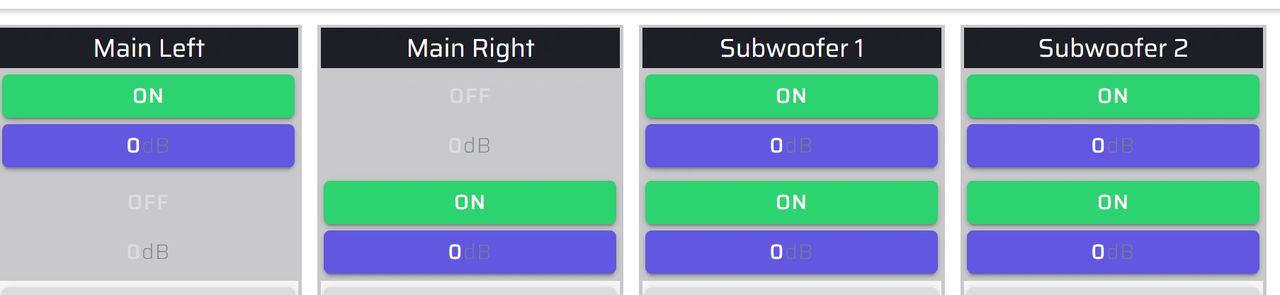
A 2.2 stereo subwoofer setup would be used when the subwoofers are located in close proximity to the full-range speakers. This is also the preferred method with subwoofers that have higher (100 Hz or greater) crossover frequencies or were designed for direct placement underneath full-range speakers.
Optional Delay Settings
It’s good practice to have the time of arrival of the audio signals from the full-range speakers and subwoofer coincident. Also, delay settings need to be finalized prior to the implementation of crossovers so as not to limit the frequency range of the reference signals.
It’s typical to see a few milliseconds of delay on the subwoofer, due to additional subwoofer and DSP processing and since subwoofers are often placed back against the wall. The indicated delay is then added to the main speakers.
For more on this topic, please check out these resources:
Tech Blog: Using Delay Settings to Integrate Your Audio System
Crossover Setting
Determining the most effective crossover between the main speakers and subwoofer is a task that goes beyond applying symmetrical textbook high and low pass filters. We have found in our testing that asymmetrical filter slopes and shapes can produce significantly enhanced results. This requires experimentation, listening and measurement.
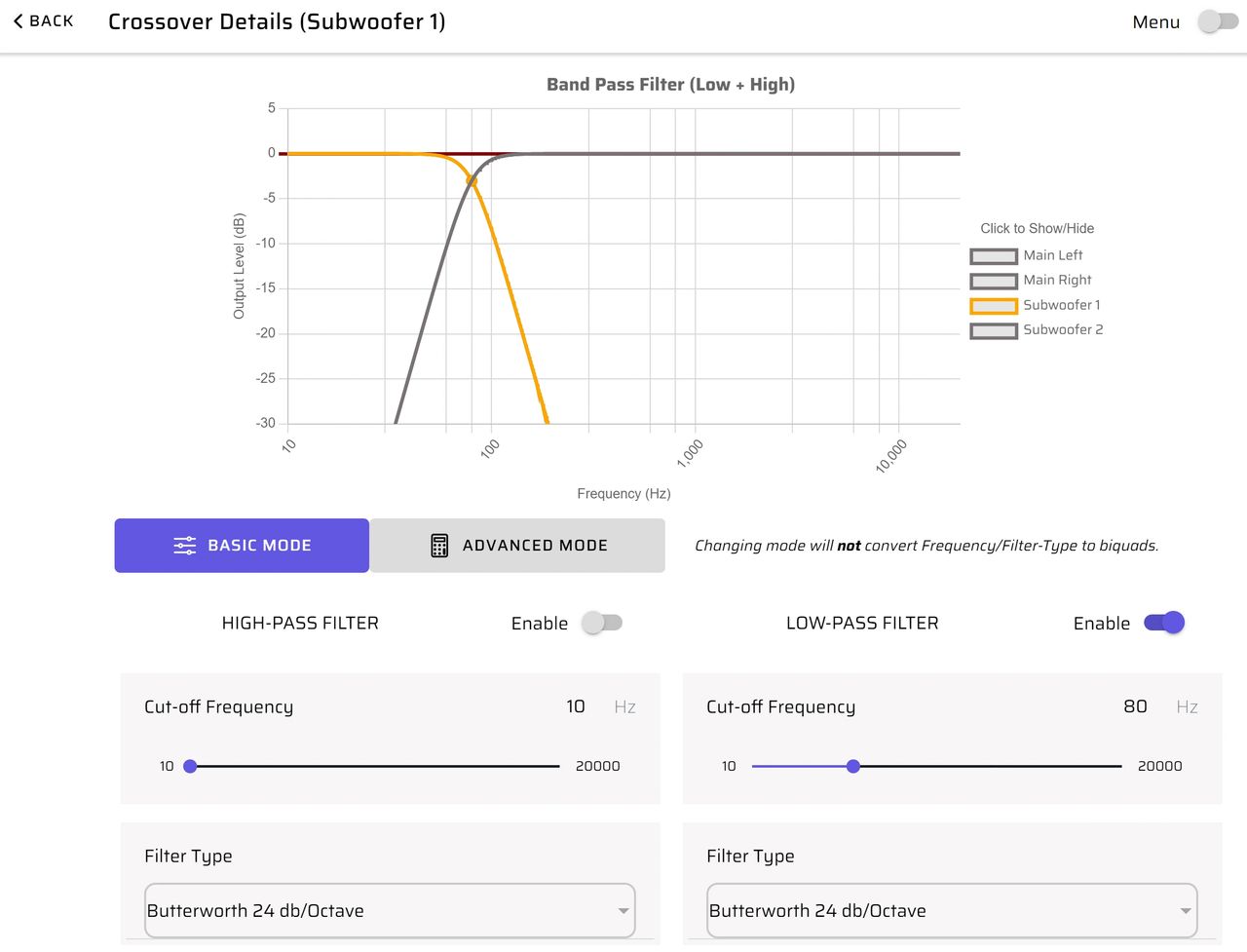
A common example of a crossover is the symmetrical 80Hz Butterworth 24dB/octave pictured below.
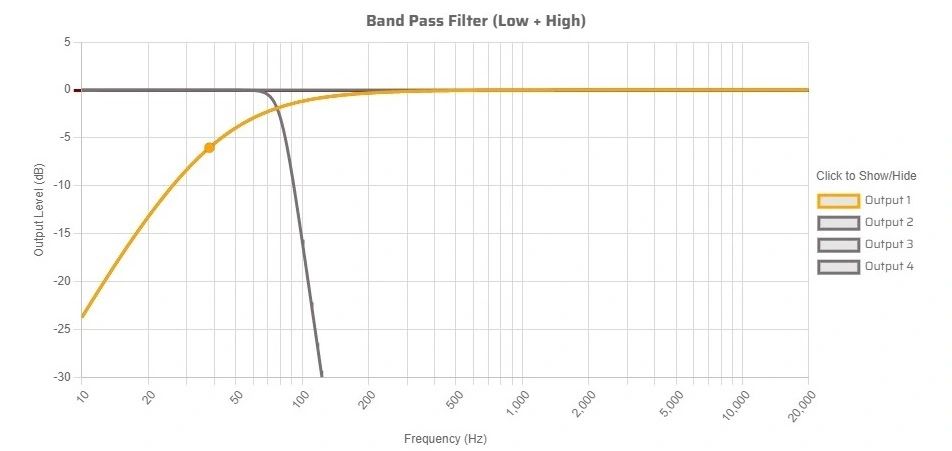
This next example is for a crossover between a 12” full-range speaker and a high powered 15” subwoofer. What's notable is the soft high-pass slope for the mains and sharper low-pass slope for the subwoofer. The soft high-pass helps to eliminate low bass room modes.
Verifying Polarities
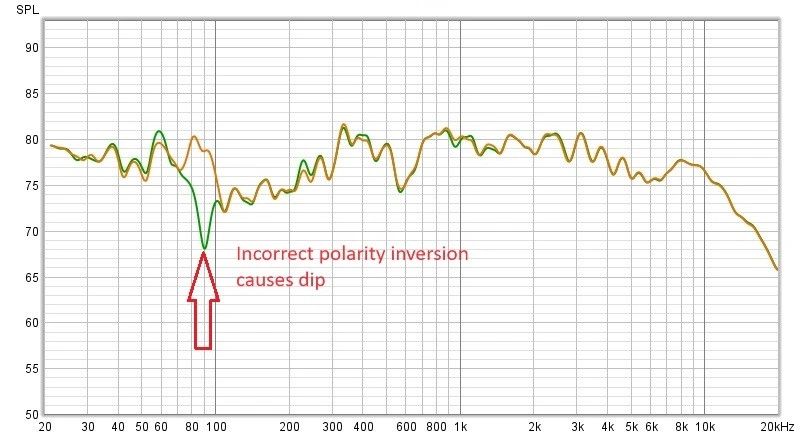
You can find polarity issues by using REW and the invert feature on the Device Console output page. By inverting any of the full-range speakers or subwoofers relative to one another, you can observe dips in the crossover region or across the frequency range.
The example below shows inverting the subwoofer, which reveals a significant dip around the crossover frequency. The same thing can be done with the main speakers to determine if they are subtracting or adding to one another. Generally the polarity is correct when the levels are additive. This is a good time to go back and revisit your crossover settings. You are now prepared to optimize level and delay in the next steps.
Relative Level Settings
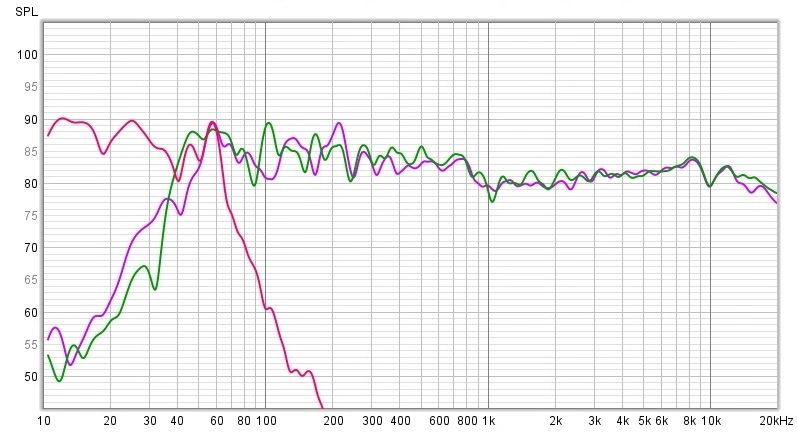
Next adjust the relative levels of all speakers and subwoofers using REW and a miniDSP UMIK-1 or UMIK-2. From the central listening area, adjust the relative levels to be equal. You can increase the accuracy of this measurement by moving the microphone around to several locations and averaging the results.
Optimizing Crossover Settings
Now is a good time to further experiment with the crossover frequencies. You can try different crossover frequency points by underlapping and overlapping crossovers and varying slopes with both symmetrical and asymmetrical combinations. You should do this while listening to the results, and verifying with REW.
With some experimentation, you will be able to get a near optimal subwoofer integration that allows you to enjoy the last octave without the sense of having a subwoofer in the room. Then when you run REW or Dirac Live you will have truly optimum results.
Room Correction with REW
Before you begin your REW project, complete all of the basic setup steps in the above sections.
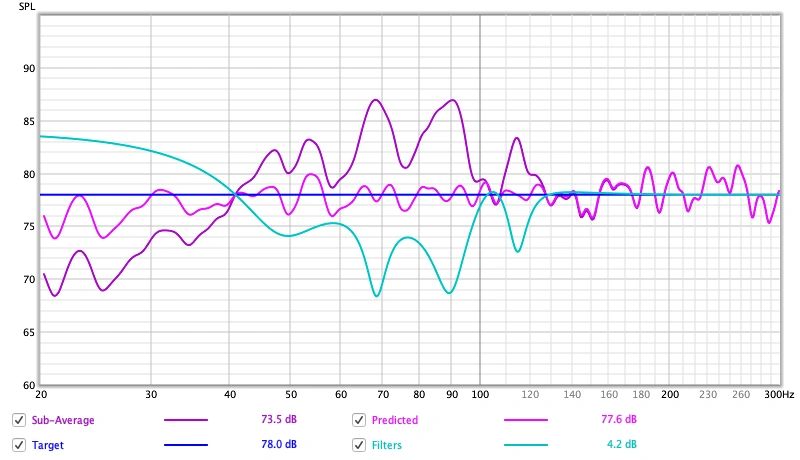
Please refer to the application note on how to use REW and its integration with miniDSP to equalize your subwoofer: REW AutoEQ step by step. This will describe the process of making in-room measurements with REW. After using the REW EQ tool to create an inverse filter, simply load the filter into your miniDSP unit and it will provide automatic correction.
Room Correction with Dirac Live
Dirac Live is the most effective way to minimize room modes, peaks and nulls. Room modes are standing waves (resonances) caused by sound reflecting between parallel surfaces in a room. These modes create specific frequencies that get boosted (peaks) or cancelled (nulls/dips) in the bass response. To accomplish this, Dirac uses time domain correction in addition to equalization.
Before you begin a Dirac project, complete all of the basic setup steps in the above sections.
Be sure to remove any parametric equalizer or REW settings you may have added. Do retain the following basic settings: routing matrix, crossovers, channel levels and delay settings. Please refer to the Dirac Live User Manual for SHD or Flex for a detailed description of the procedure.
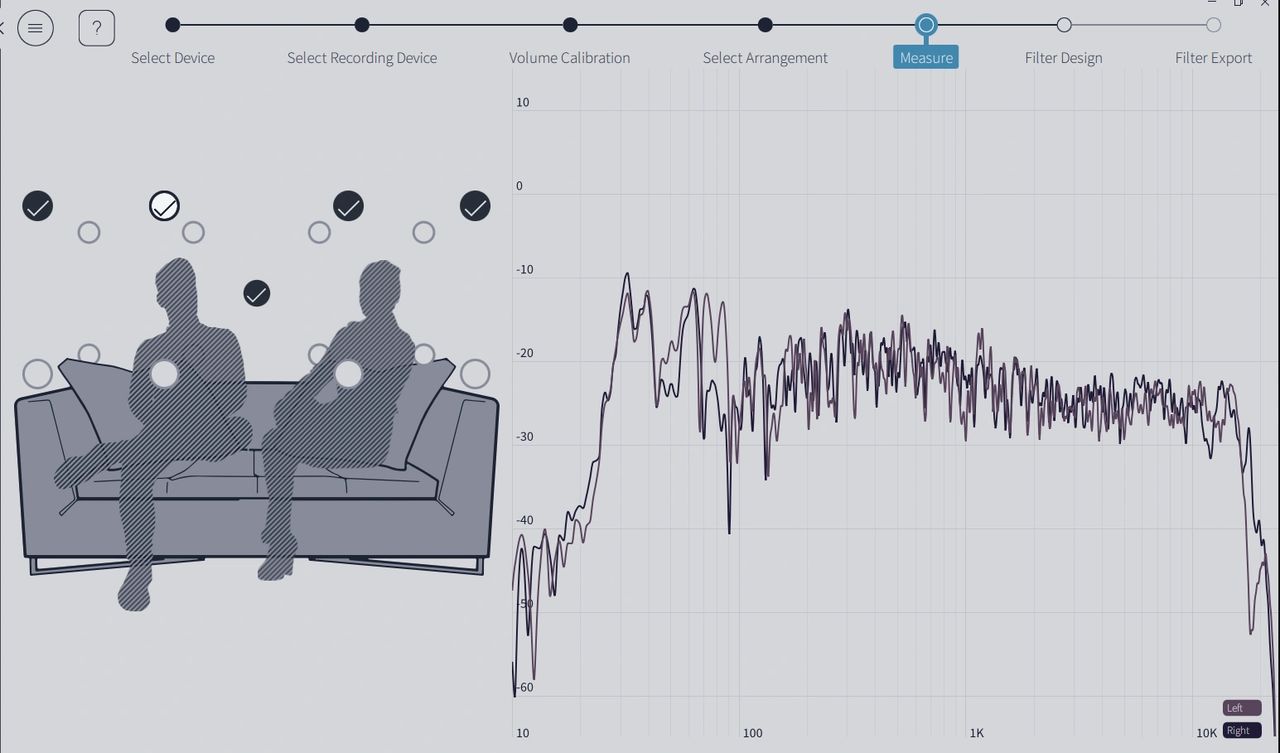
Here is an overview of the steps:
- Verify you have all the proper USB connections in place, with adequate room to see your computer and be able to fully move the microphone around the measuring area
- Initiate Dirac Live from the miniDSP Device Console
- Confirm that you are logged into your Dirac Live account
- Verify that you have no error messages before you proceed to level calibration
- Perform level calibration combining both Dirac channels in the routing matrix
- Select either narrow or wide focus listening area
- Perform all specified measurements
- Proceed to calculating the Dirac correction waveform
- Export the Dirac project to the miniDSP configuration slot of your choice
- Save your Dirac project
Check out the companion video and more on our YouTube Channel
https://www.youtube.com/@deer_creek_audio
If you have questions or would like to discuss in more depth, feel free to give us a call or drop a line.
Share: