


Using a miniDSP Flex HTx with Device Console
to Create a Dynamic Home Theater System
In this system spotlight, we will explore a TV-centric 5.2 home theater system using a miniDSP Flex HTx. If you are not familiar with the Flex HTx, please read our tech blog Overview of miniDSP Flex HTx using Device Console or watch the companion video on our YouTube Channel before diving into this system spotlight.
The system in our example has an Apple TV media streamer and an LG OLED TV with HDMI eARC. The eARC feature provides 7.1 channel linear PCM from the TV to the Flex HTx.
The system block diagram below shows a TV-centric 5.2 home theater system. The signals are coming into the Flex HTx via HDMI eARC from the TV. The Flex HTx then completes all of the digital signal processing required to properly configure and calibrate our home theater system.
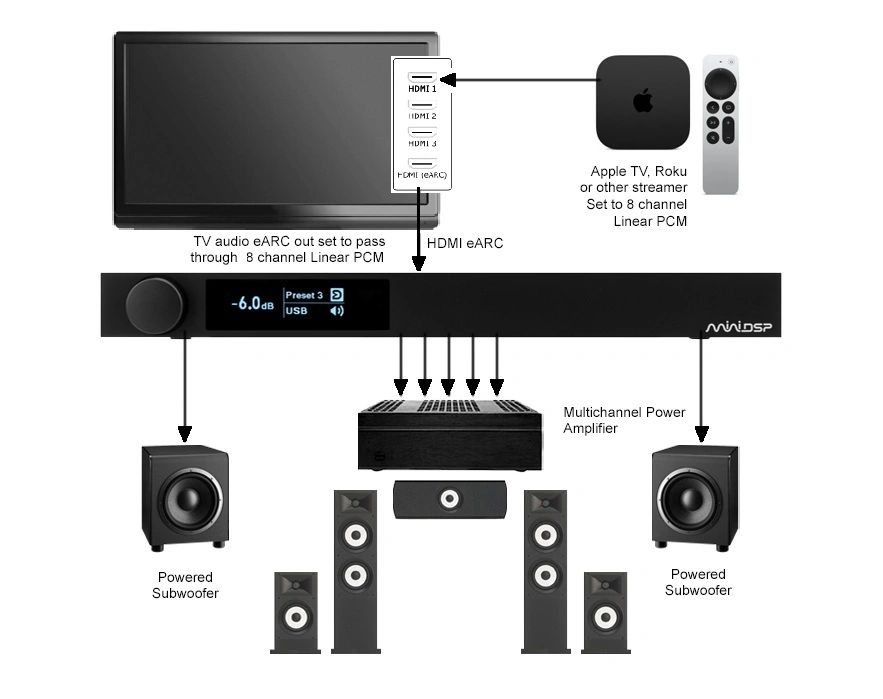
In this system we are using an Apple TV media streamer that receives and decodes both Dolby or DTS. The decoded audio video stream is then sent to our LG OLED TV, which in turn sends 7.1 channel LPCM to the Flex HTx via HDMI eARC.
We are using the Flex HTx to reconfigure 7.1 audio into 5.2 to be compatible with our home theater surround speaker system.
Signal Flow Diagram
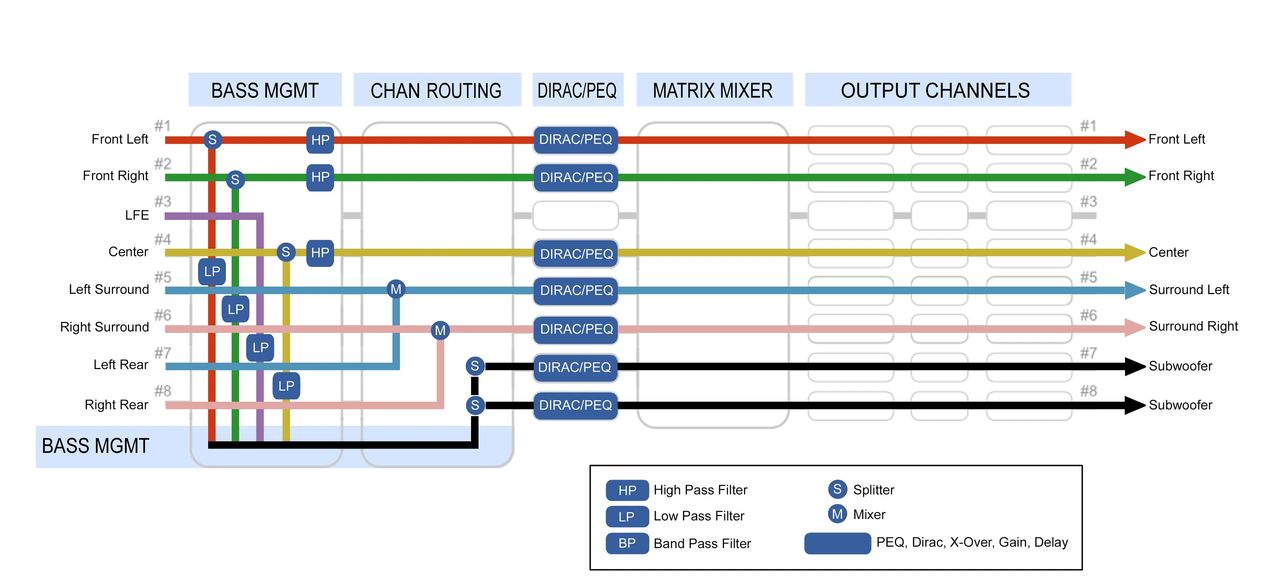
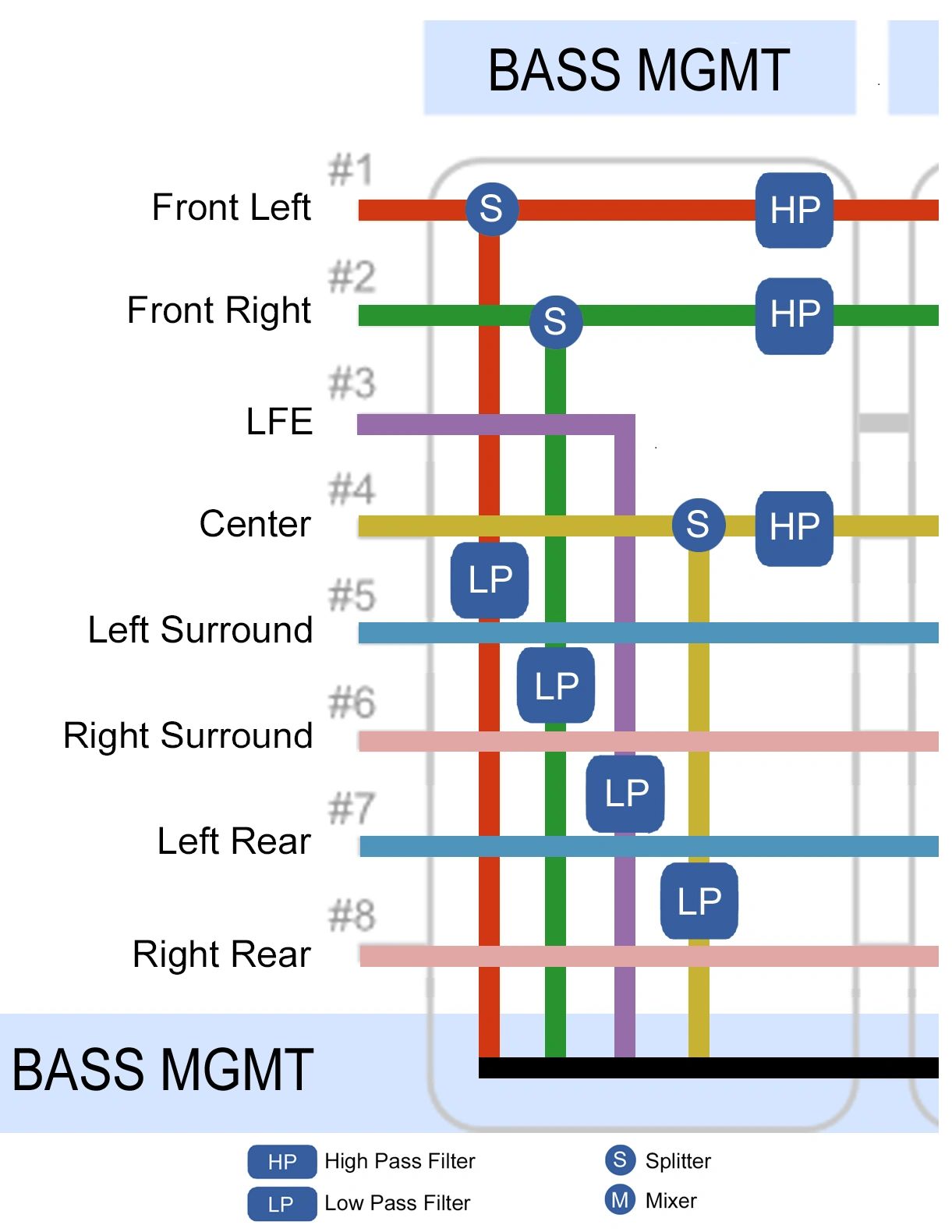
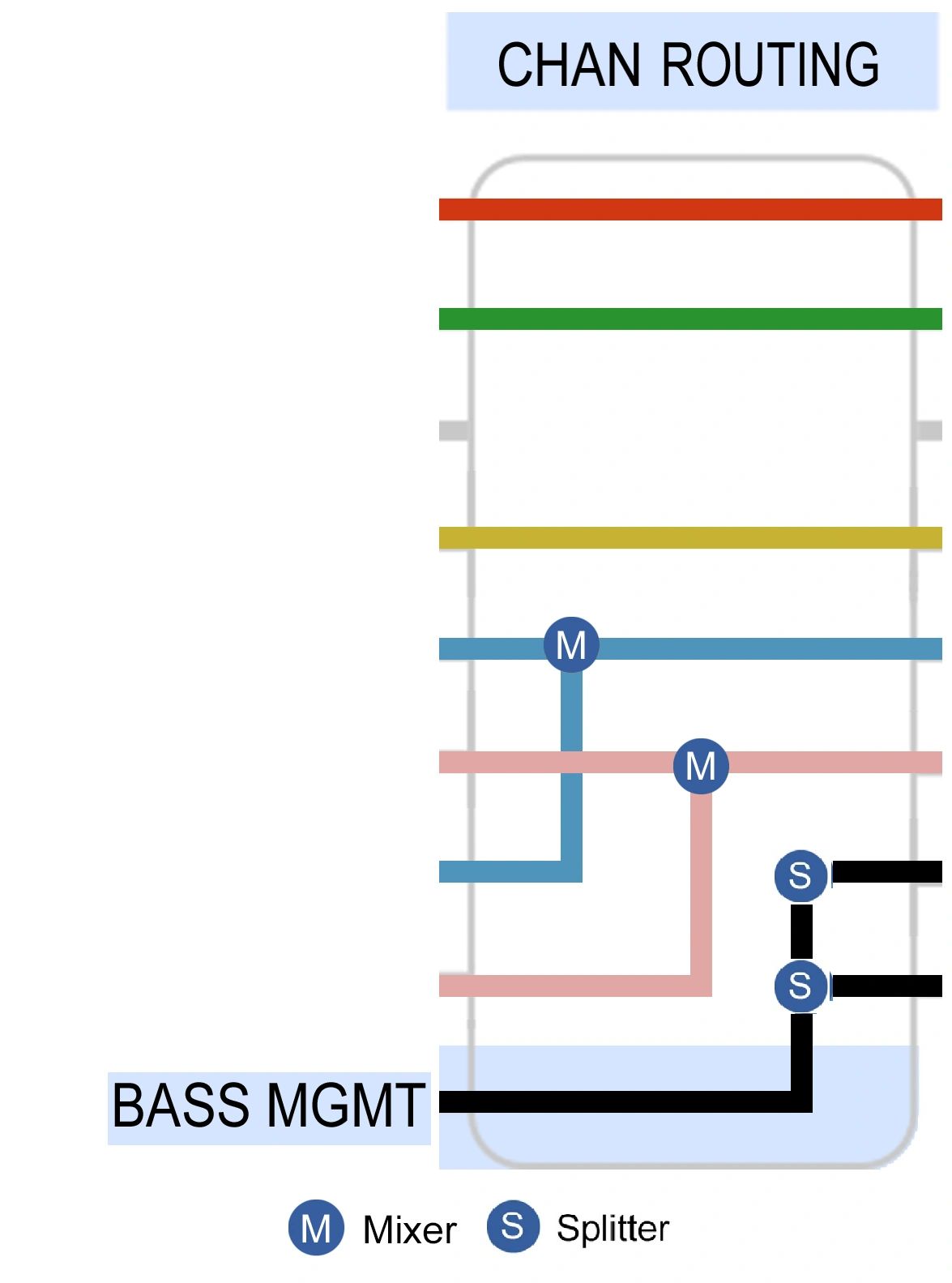
In the Signal Flow Diagram for this system, we’ve routed the 7.1 inputs to be compatible with our 5.2 home theater setup. Note that in the Bass Management section we have channel routing along with high and low pass filters. All of the splitting, filtering and mixing is performed prior to the Dirac / PEQ page, so any Dirac or PEQ room correction will occur as the final step.
Input Channels
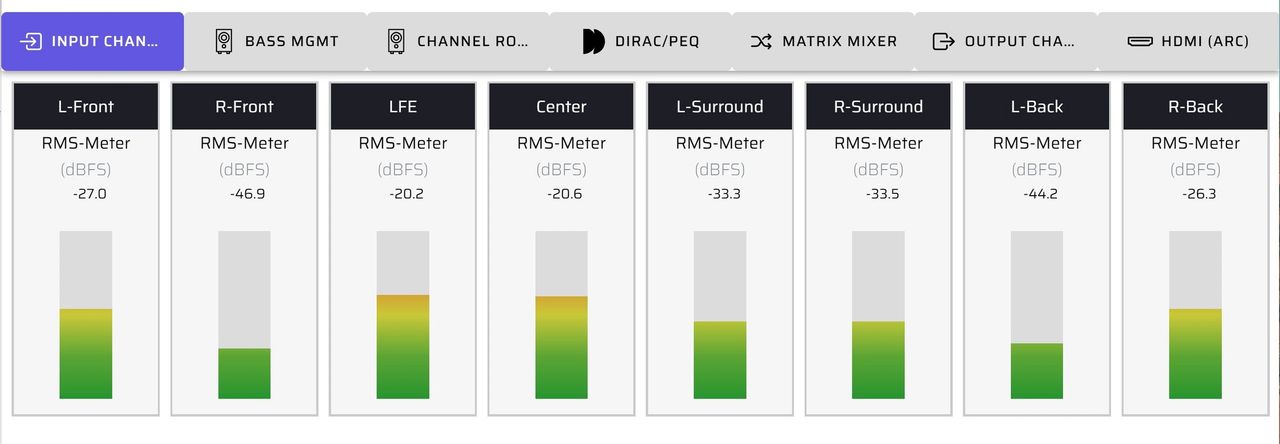
The default labeling here on the input channels is the standard convention for HDMI 7.1 channel linear PCM. This represents the signals coming into the Flex HTx via HDMI eARC from the TV.
Bass Management
The Bass Management page is critical to our 5.2 home theater system. This is where we define which signals are routed to the subwoofers, and where the high and low pass crossovers are set.
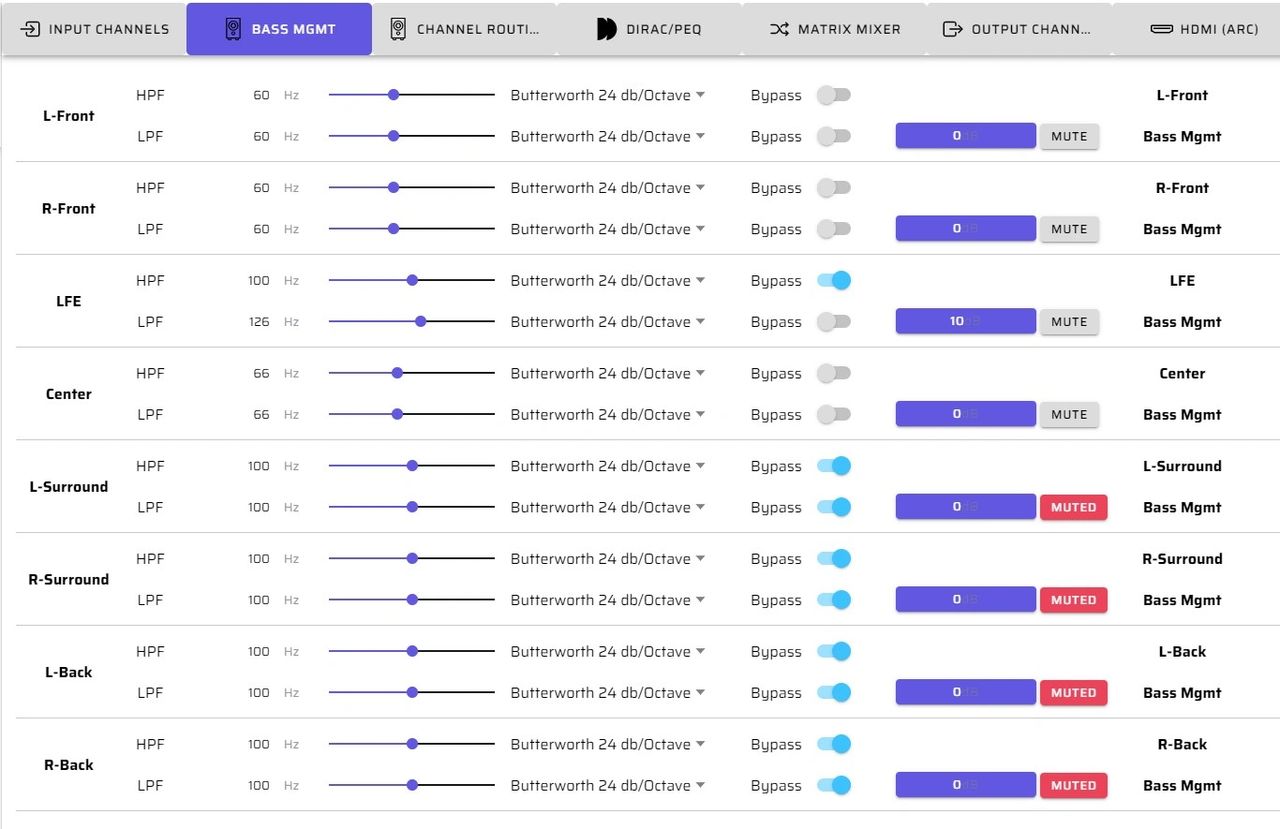
In our 5.2 surround system, we will extract low frequency information from the left and right front speakers and also from the incoming LFE channel. These bass signals are then combined into the bass management channel that is later split out to two subwoofers.
First, we enable the high and low pass filters for the left and right main channels. Next, we enable the low pass for the LFE channel. We’ve selected 100 hertz for the high and low pass on the front left and right speakers. For the LFE low pass, we’ve selected 150 hertz to allow all of the signals to pass through.
Next we allow these channels to enter the bass management channel by turning off the mute button. Typically LFE channels have negative 10 dB programmed in, so we will add 10 dB to bring it up to the natural level.
Channel Routing
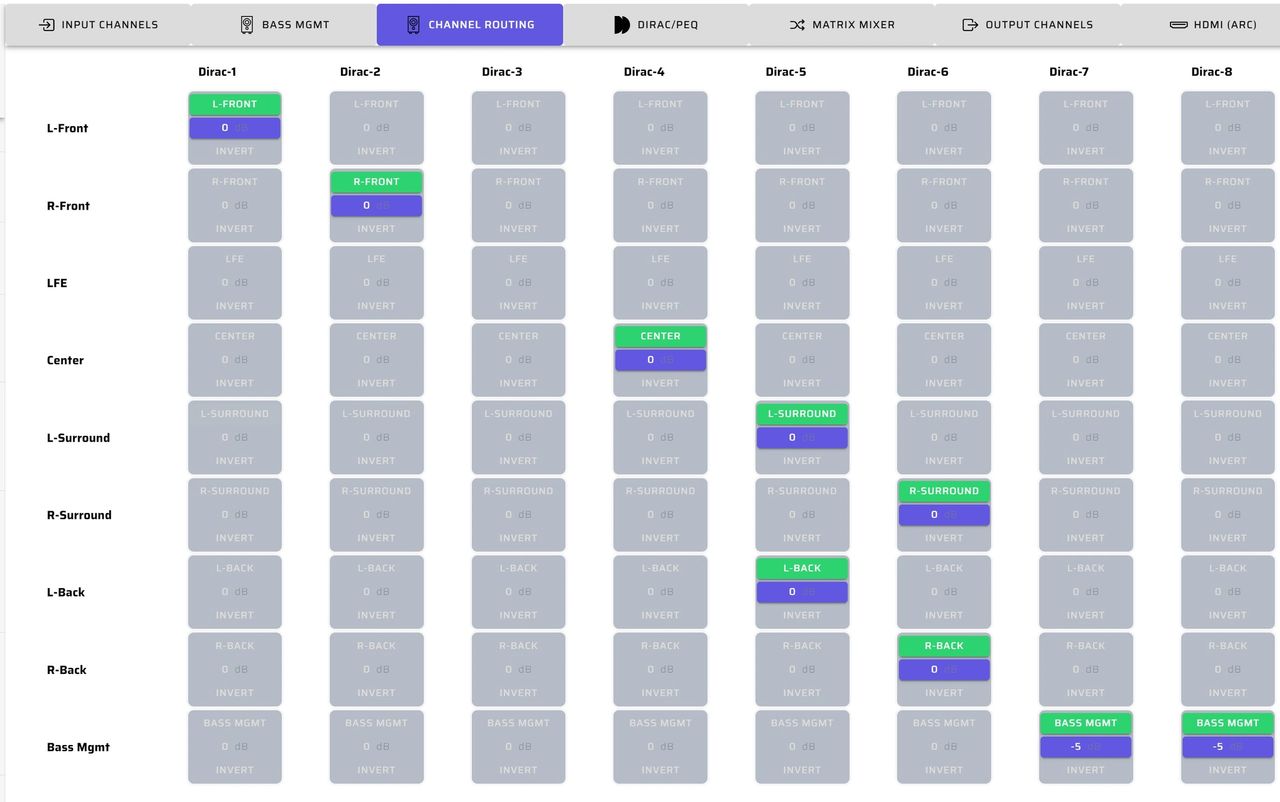
On the Channel Routing page we are mixing and splitting the default 7.1 channels coming in over HDMI eARC to match the requirements of our 5.2 system.
We are mixing the four surround and rear channels into left and right rear surround speakers. We also are splitting the bass management channel to actively drive our two subwoofers.
Dirac / PEQ
From the general settings panel of Device Console, you’ll select the 5.2 output channels on which to perform Dirac Live. You also can add a label for their speaker type. This allows you to skip performing a Dirac project on unused channels.
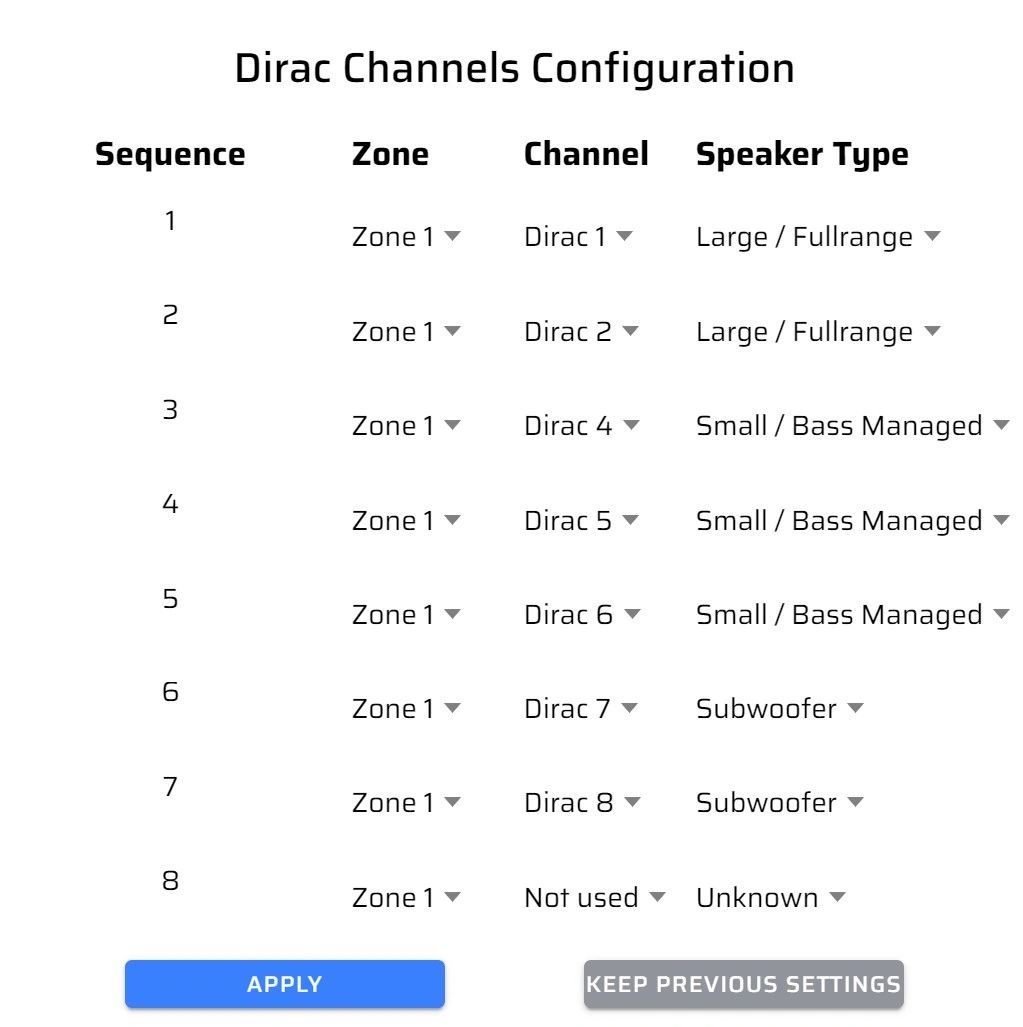
You also can use the 10-band full function PEQ with or without Dirac to adjust frequency, gain, Q and filter type individually. All the PEQ values can be adjusted in real time.
For more details on how to complete a Dirac project, please refer to the miniDSP Flex HTx user manual: Dirac Live - miniDSP Flex HTx User Manual
Matrix Mixer
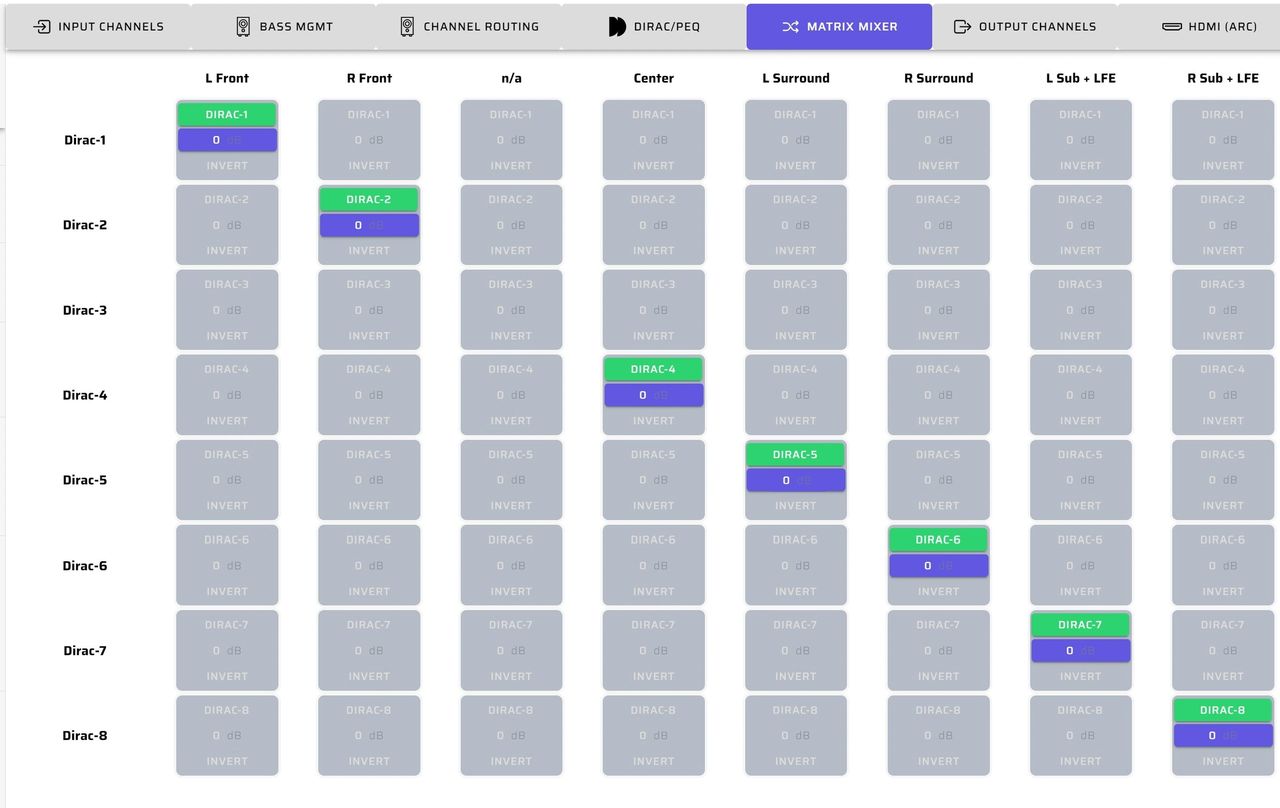
The matrix mixer allows you to do final routing and mixing after Dirac or PEQ processing and prior to the Output Channels page. In this example, it's a straight through with one exception. The third input is not used as the LFE channel was routed to the bass management channel.
Output Channels
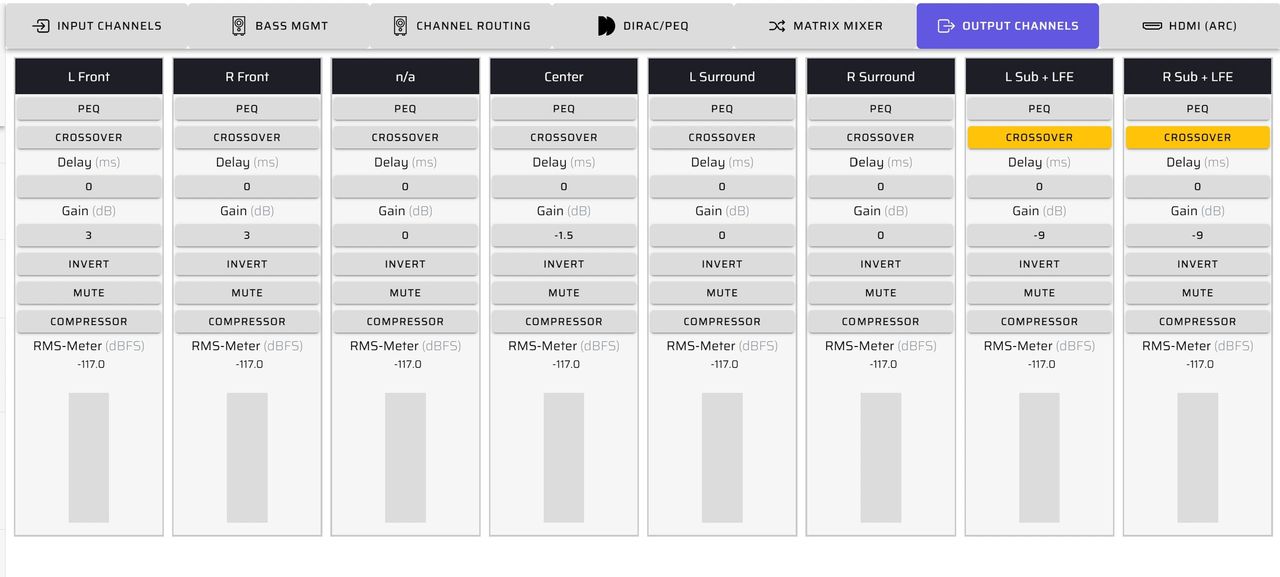
The Output Channels page allows us to modify the signals we are sending to the power amplifiers and subwoofers. This is where we set individual channel parameters to ensure the system has proper, balanced sound with clear voices and tight powerful bass. These critical settings are:
- Gain
- Crossover
- Delay
- Inversion
HDMI (ARC)
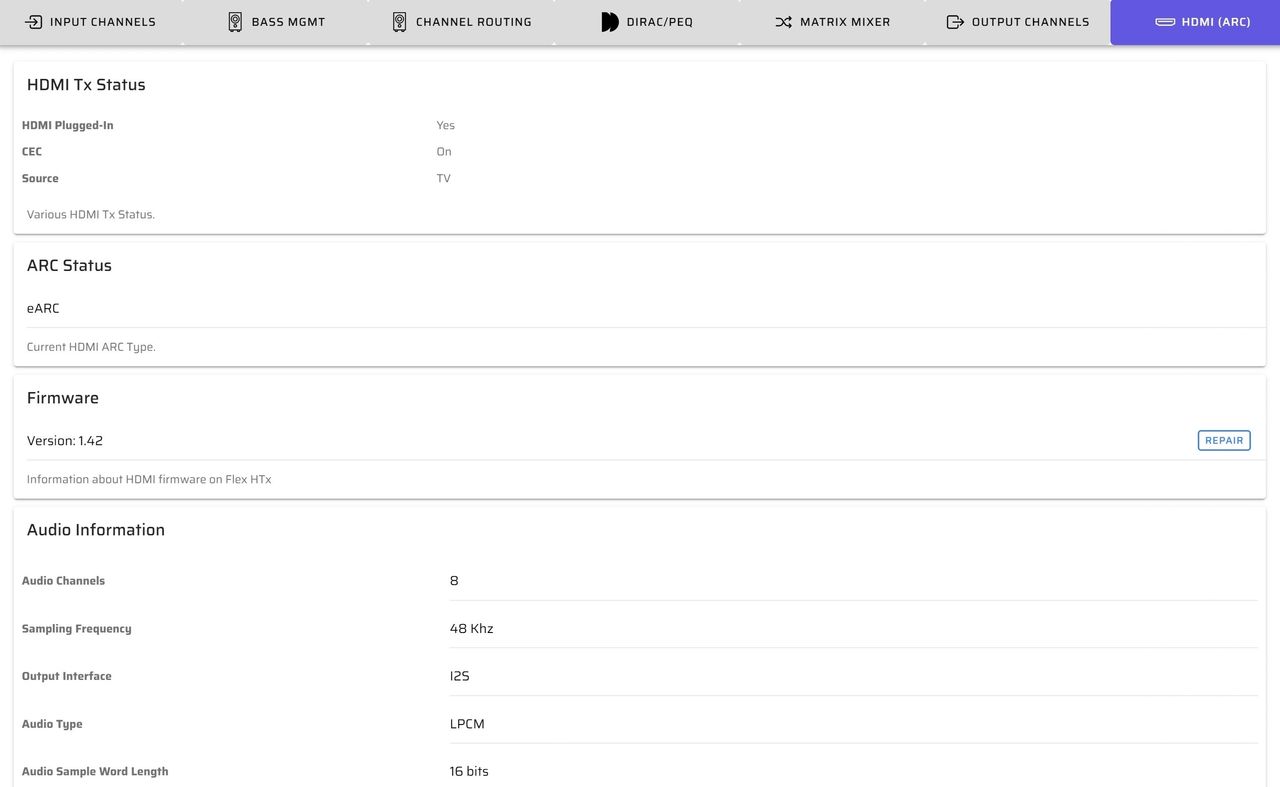
On the HDMI (ARC) page you’ll verify that your TV is sending 7.1 channel LPCM to the Flex HTx and that it is being properly received.
If the program material being sent only contains two channel LPCM, or if your TV is only capable of sending two channel LPCM, you will see that here as well.
Signal Flow Diagram Template
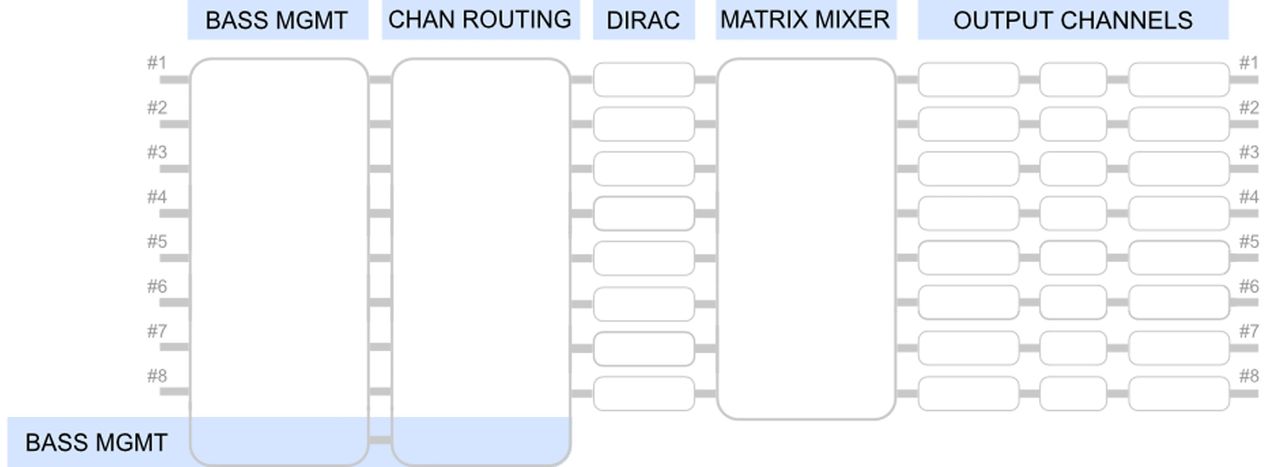
You can download a blank Signal Flow Diagram here and use it to sketch ideas for your system layout before implementation.
Check out the companion video and more on our YouTube Channel
https://www.youtube.com/@deer_creek_audio
If you have questions or would like to discuss in more depth, feel free to give us a call or drop a line.
Share: